Using Federation Shares
Federation Sharing allows you to mount file shares from remote OfficeOnline servers, in effect creating your own cloud of OfficeOnlines. You can create direct share links with users on other OfficeOnline servers.
Creating a new Federation Share
Federation sharing is enabled on new or upgraded OfficeOnline installations by default. Follow these steps to create a new share with other OfficeOnline or ownCloud 9+ servers:
1. Go to your Files page and click the Share icon on the file or directory
you want to share. In the sidebar enter the username and URL of the remote user
in this form: <username>@<oc-server-url>. The form automatically confirms the address
that you type and labels it as “remote”. Click on the label.
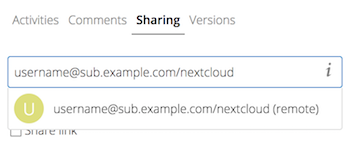
2. When your local OfficeOnline server makes a successful connection with the remote OfficeOnline server you’ll see a confirmation. Your only share option is Can edit.
Click the Share button anytime to see who you have shared your file with. Remove your linked share anytime by clicking the trash can icon. This only unlinks the share, and does not delete any files.
Creating a new Federated Cloud Share via email
Use this method when you are sharing with users on ownCloud 8.x and older.
What if you do not know the username or URL? Then you can have OfficeOnline create the link for you and email it to your recipient.
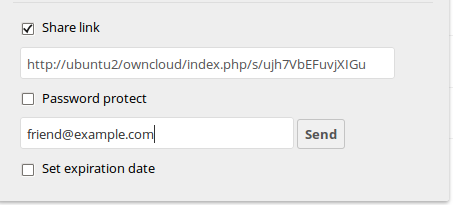
When your recipient receives your email they will have to take a number of steps to complete the share link. First they must open the link you sent them in a Web browser, and then click the Add to your OfficeOnline button.
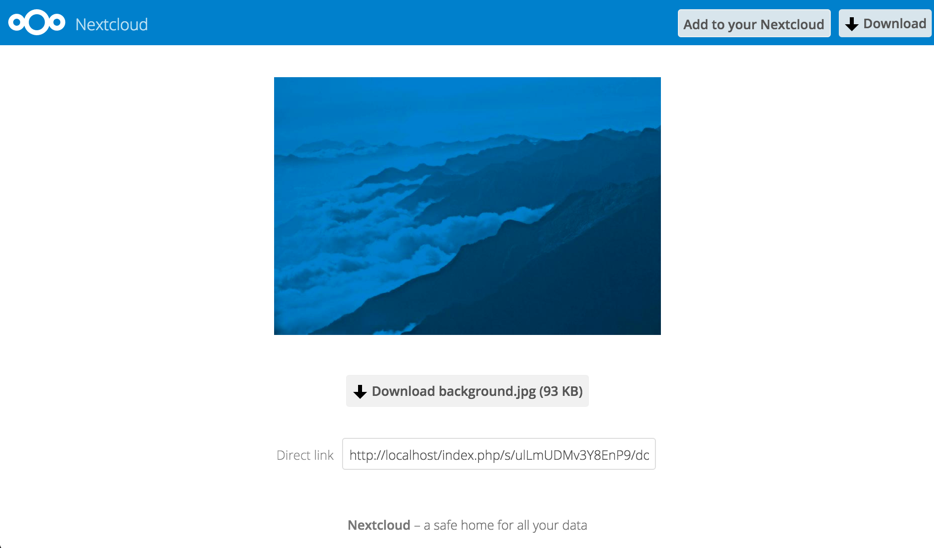
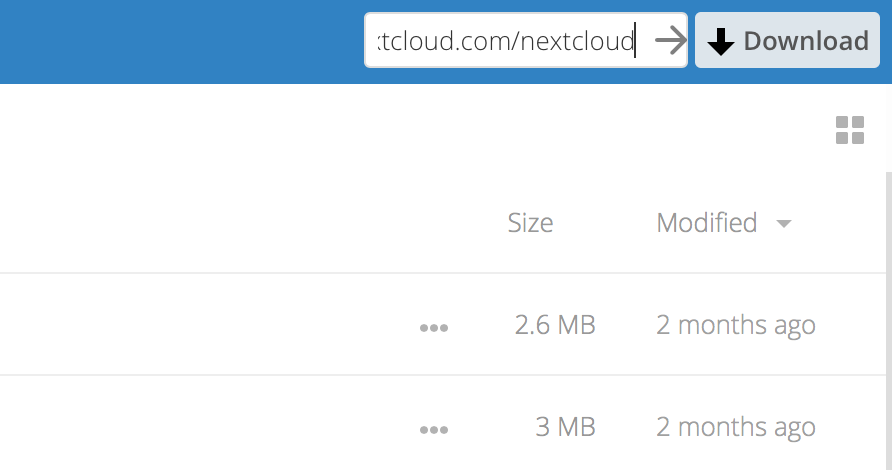
The Add to your OfficeOnline button changes to a form field, and your recipient needs to enter the URL of their OfficeOnline or ownCloud server in this field and press the return key, or click the arrow.
Next, they will see a dialog asking to confirm. All they have to do is click the Add remote share button and they’re finished.
Remove your linked share anytime by clicking the trash can icon. This only unlinks the share, and does not delete any files.